
In this post I'll be going over how you can easily make a lego cover for your laptop. Specifically I'll be covering how to make one for the M4 Macbook Air, but a very similar process would apply to other laptops as well.
This can then either be used for custom designs using lego - one of my nieces made a nice design of the old apple logo on mine for me.
Or you can use it for attaching an external SSD or other dongles to the back of the laptop, keeping them neat and tidy. We will also look at a couple of different USB hubs.
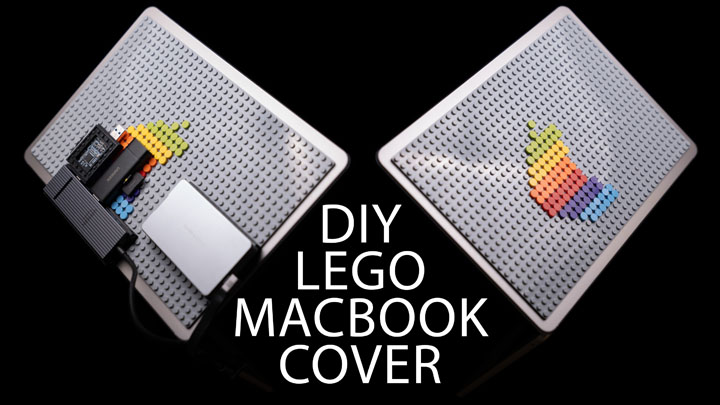
If you'd prefer a video version of this post, you can find that here: DIY Lego macbook / laptop cover for attaching drives and dongles.
Making the cover
You will need three things:
A plastic lid case that fits your laptop (at least for an aluminium chassis laptop like my macbook). You can pick these up cheaply from AliExpress. For my macbook air M4 you get the case as both a top and bottom part. It is only the top part that is needed. While the bottom part will protect the laptop base from scratches, in theory it will also have a negative effect on heat dissipation. However, in testing, I see little performance difference between having the bottom case attached or not.
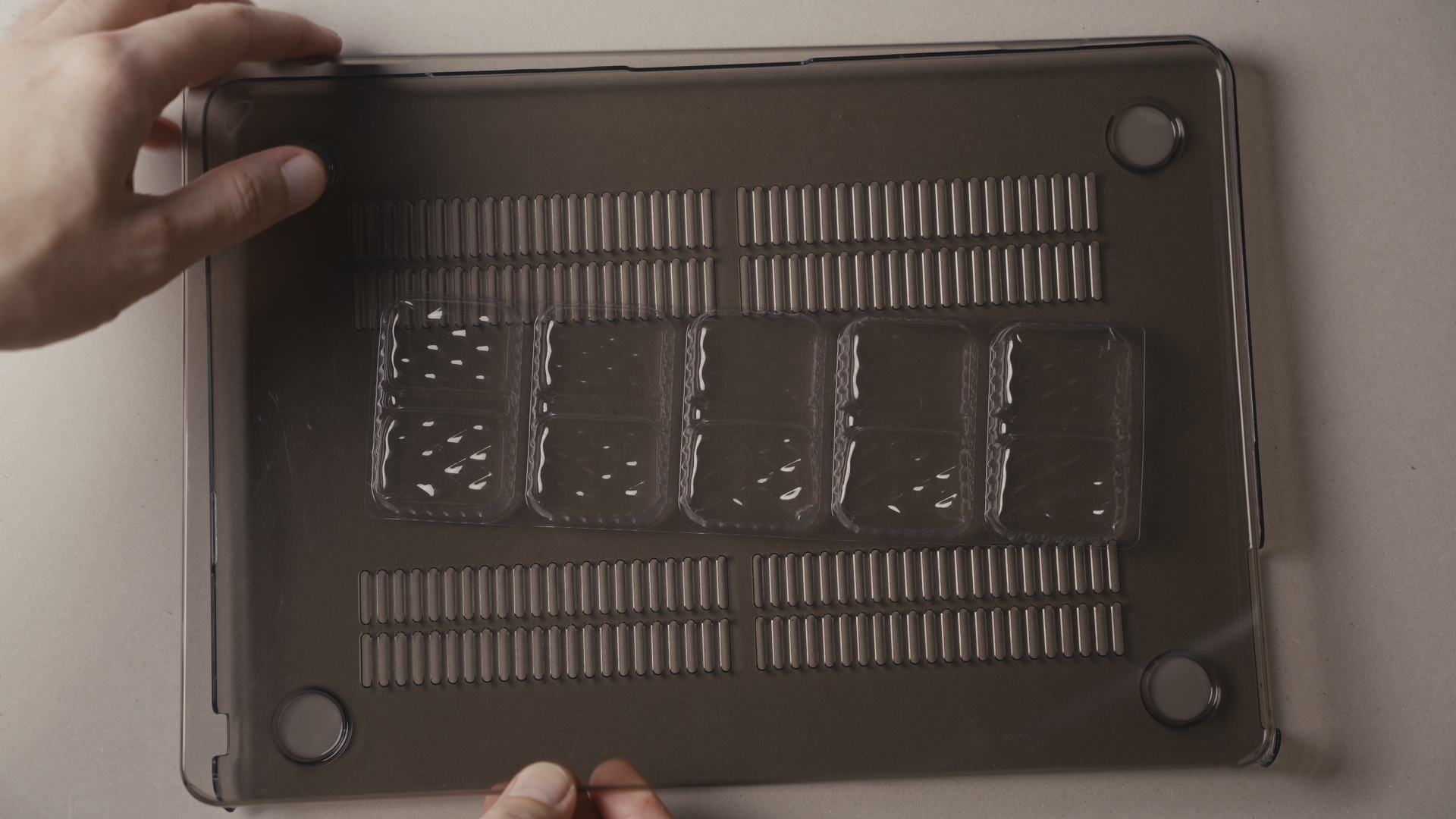
Plastic Macbook shell / cover / case consisting of a lid cover and base cover
A lego base. For my 13" laptop I found a 24x36 stud plate was a good fit. The plate I got is not a genuine lego product, I'm not sure if genuine lego plates are even available in this size.
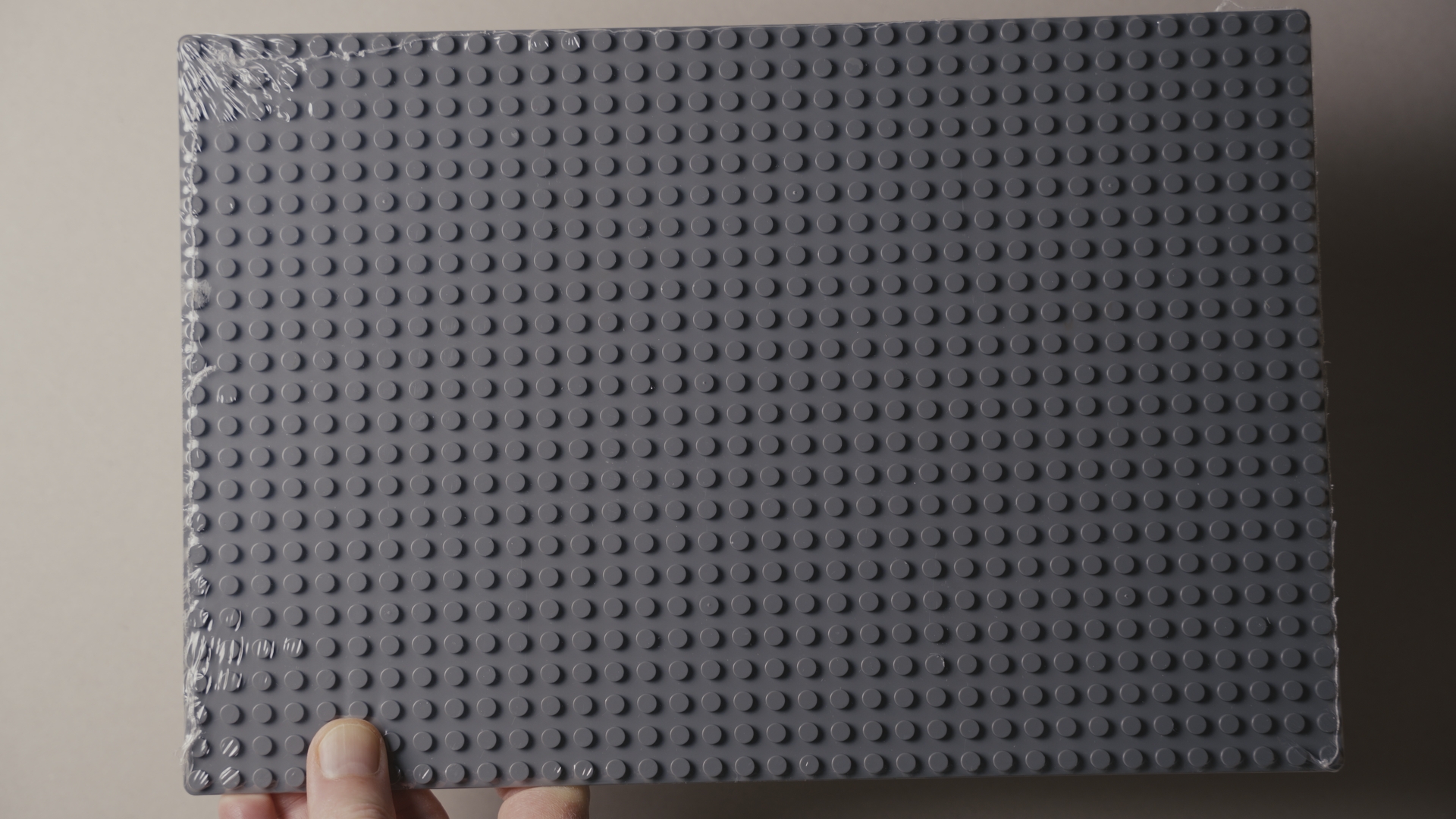
24x36 stud lego compatible base plate
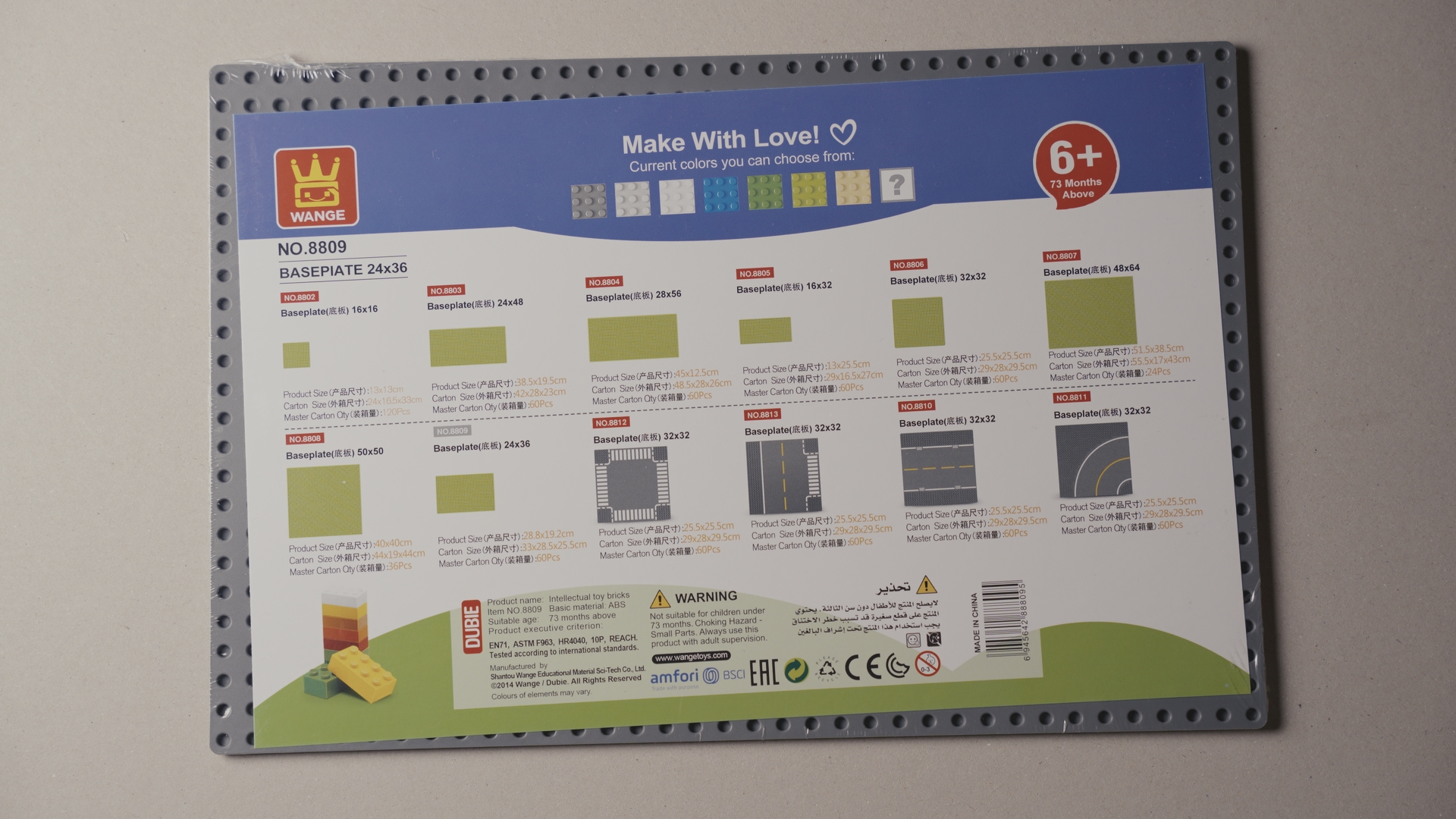
Label for the 'lego' plate
Thin but strong double sided tape.
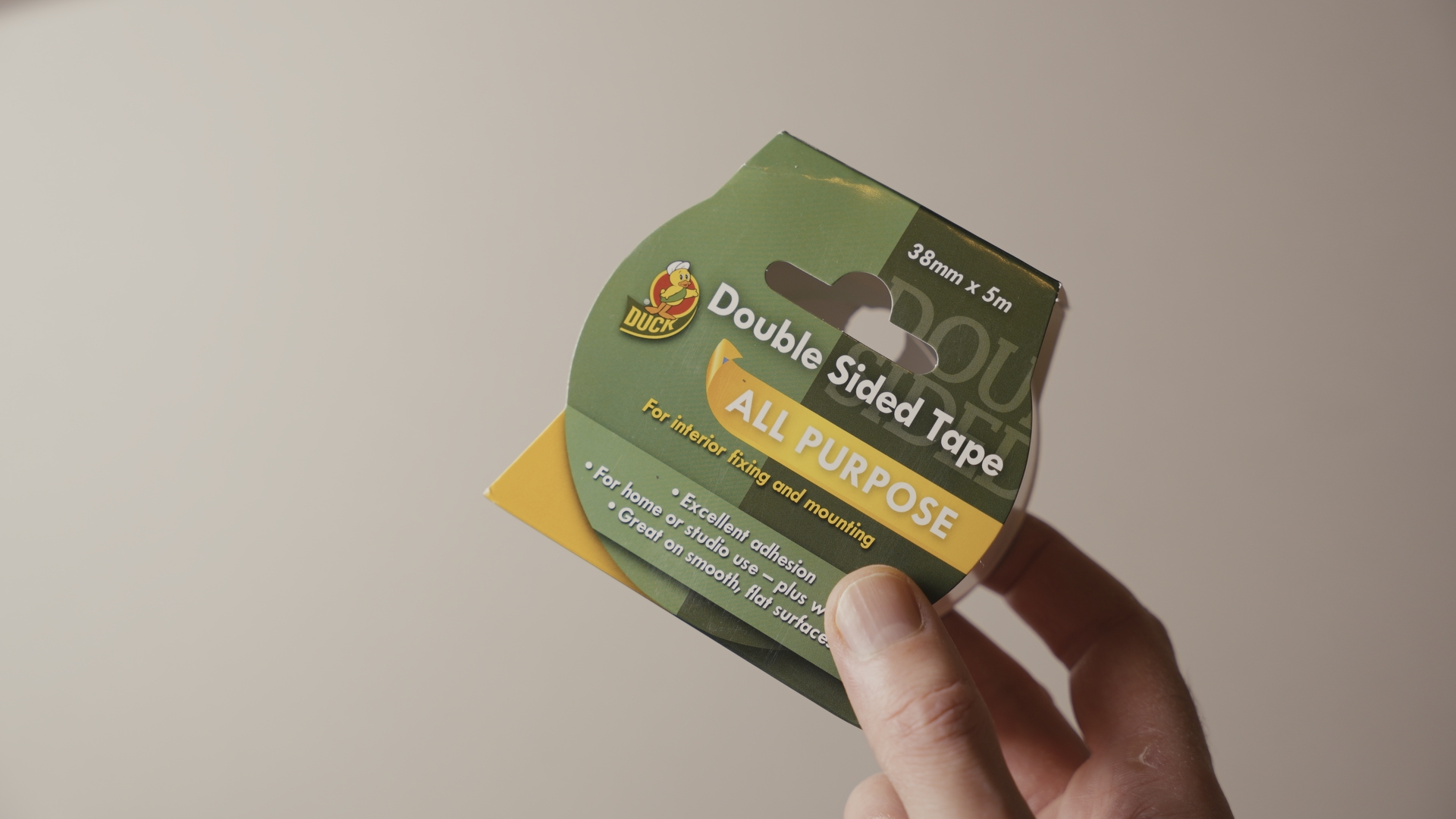
Duck All purpose double sided tape
Put the double sided tape on the back of the lego plate, and trim off any excess around the edges. I used this Duck All Purpose double sided tape, which just so happened to fit almost perfectly in 5 strips across the back of my plate.
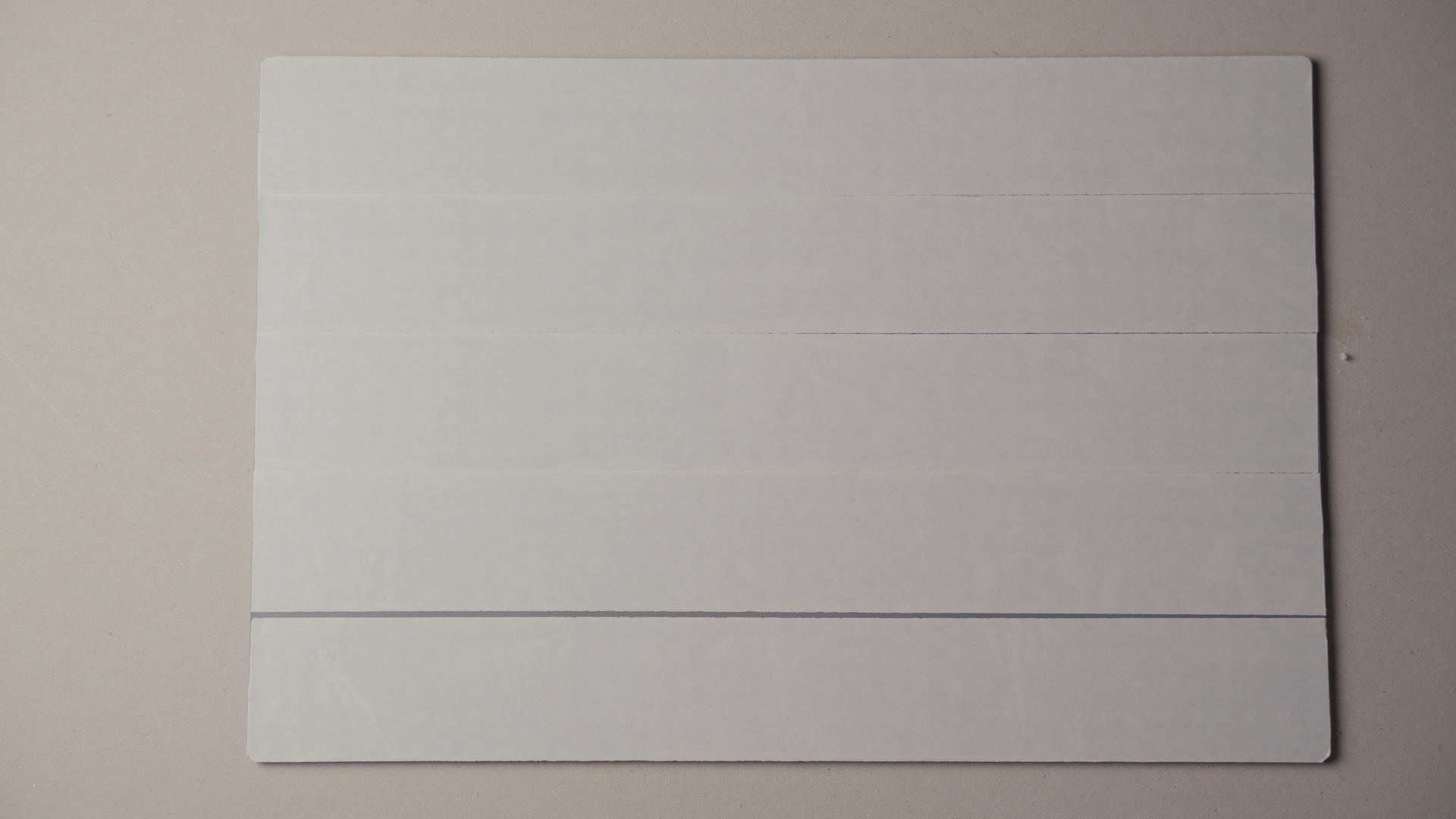
Lego plate with double-sided tape
Fit the cover to the laptop, then stick the lego plate onto the cover. And you now have your lego laptop cover.
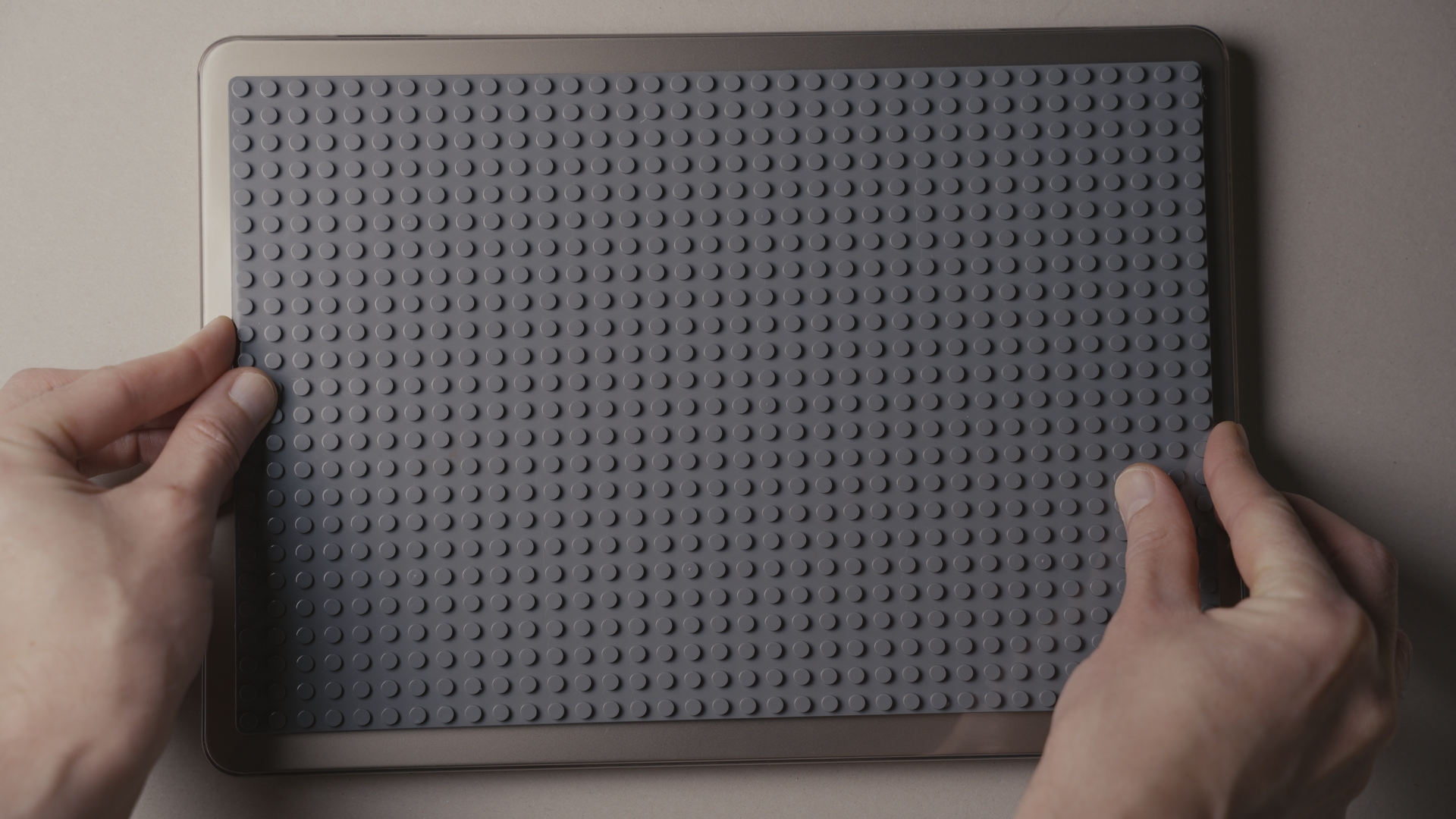
Sticking the lego plate to the macbook cover
The reason for sticking the lego plate onto a cover rather than directly to the laptop lid is that the adhesive would discolour the finish of the aluminium lid.
Comment
by u/bbarika from discussion
in macbookair
Does anyone know how to get rid of sticker fades? (Already got stickers off).
by u/MikeisTOOOTALLL in macbook
Sticker decolored my work MacBook. I need to return it and would LOVE to somehow get rid of the sticker imprint. Any advice?
by u/gnlccsch in applehelp
Stains of stickers from previous MacBook owner
by u/yanik1201 in mac
If you are doing this with a laptop just made of plastic, or you don't care about the laptop's resale value, then you might as well just stick the plate directly to the laptop lid.
There is actually a commercially available lego-compatible laptop cover, however they only seem to offer cases compatible with older macbooks: Brik book macbook case.
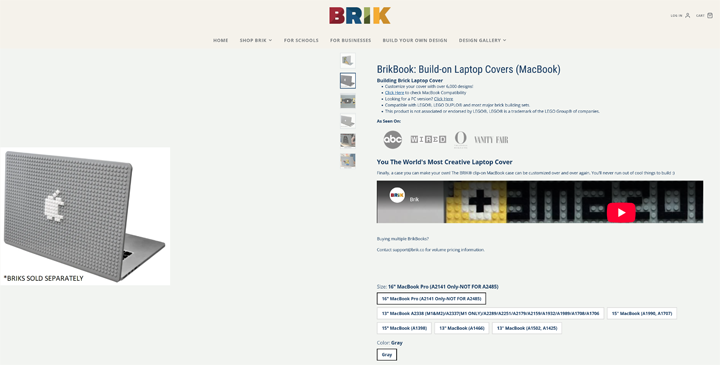
Brik book lego macbook cover webpage
Attaching dongles - why?
The main reason for attaching devices onto the lid of your laptop is just to keep things nice and tidy. If you're working with the laptop on your lap or a small flip-out tray on the back of a train or plane seat, you don't really have anywhere to put other devices you need to connect up.
Built-in storage on modern macbooks is notoriously expensive, and so it is much cheaper to get a macbook with minimal built-in storage and use an external SSD for storage instead. I also want to be able to review photos and videos from my cameras on mine, which means I need a couple of card readers - one for CFExpress cards and one for SD and micro SD.
My macbook air M4 has a very poor design with 2 USB-C sockets right next to each other, which means you are basically forced to connect things via cables if you want more than one thing plugged in at a time. Hence why it is useful to be able to attach things to the laptop lid.
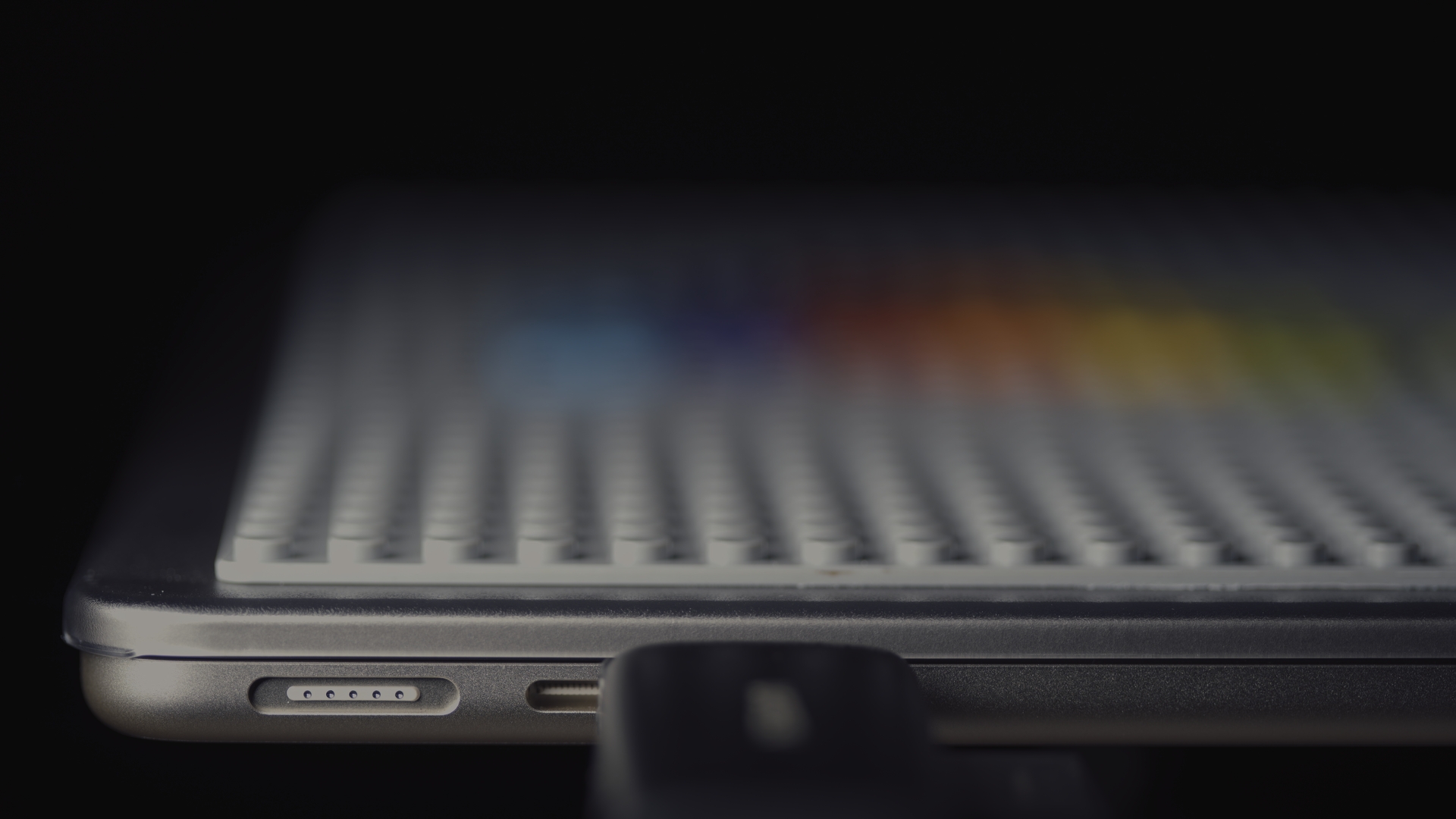
With an SD card reader plugged into one USB-C socket, the other socket is inaccessible
I should say that I am not sure whether attaching dongles onto the laptop's lid is actually a good idea. The extra weight could potentially degrade the hinges over time and leave you with a floppy screen that won't hold position. With that disclaimer, let's look at how to attach devices onto the lego lid.
Attaching dongles - how?
For this part you will need access to a 3D printer and you will almost certainly need to design your own parts. It would be possible to just build your own dongle enclosures from standard lego bricks, but unless you superglue them together, these would probably fall apart when you try and remove the dongle from the lid.
For designing the lego parts I found this aricle from grab cad very helpful: LEGO - 01 Basic Dimensions & Bricks Explained.
The main dimensions you need are the small dot that goes between stud spaces on the bottom is 3.2mm diameter. The stud is 4.8mm, one brick, or the space between studs is 8mm.
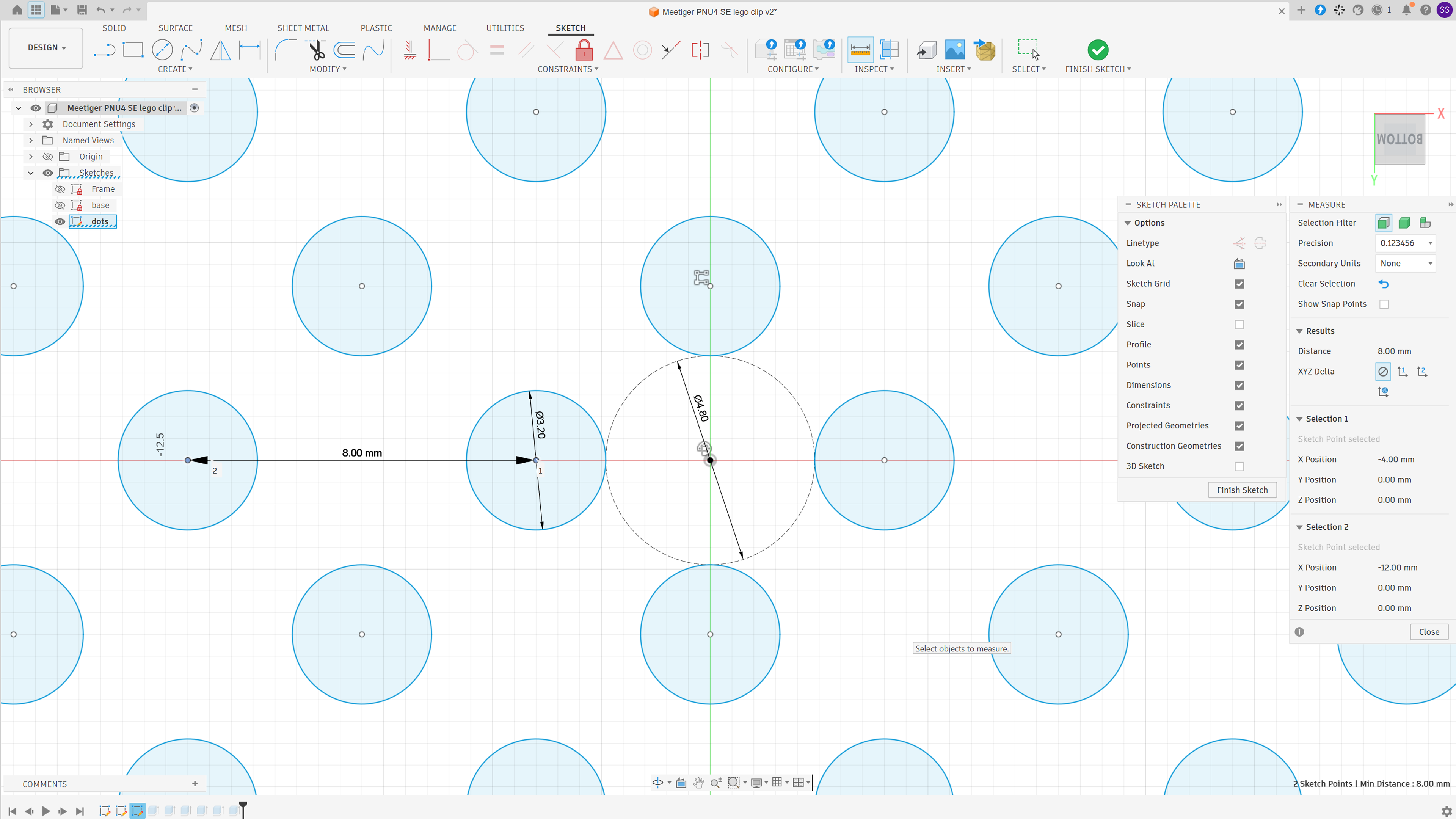
Dot and stud sizing and spacing in Fusion design
The edge width and stud height are both 1.6mm.
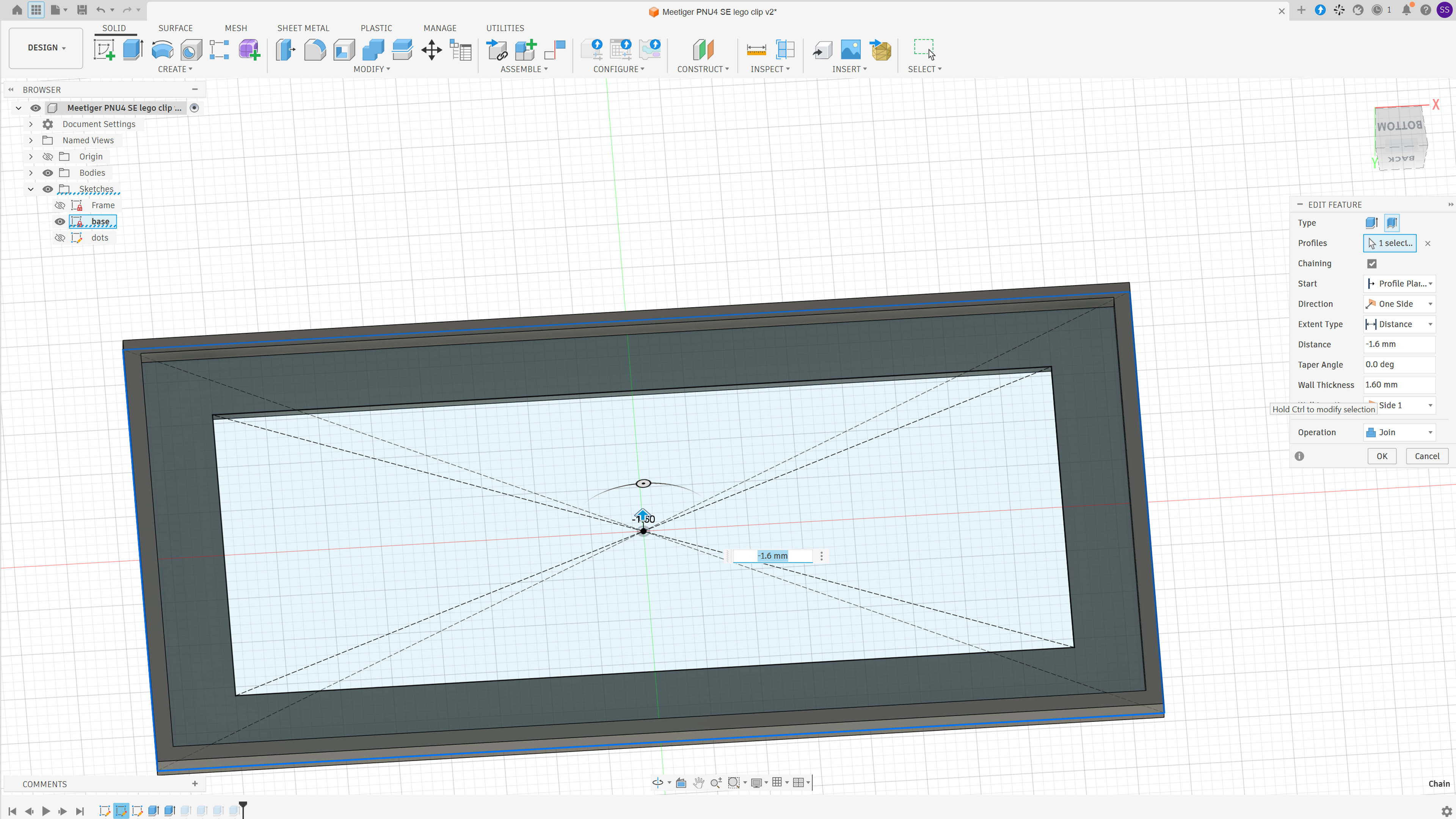
Wall height and thickness in Fusion design
I ended up printing most of my pieces with the base (female side) down. Not technically the best position for overall strength of the piece, but so far it seems okay. We have to remove the support between each dot, but it comes off without too much trouble. Grip when stuck onto another brick / base is not as strong as if we print female side up, but this is probably a good thing as it makes it easier to remove. The grip still seems plenty good enough.
Once you have a way of attaching your dongles etc. you need to work out how to connect them to the laptop.
I wanted a setup that keeps the cables neat with the laptop lid closed and open, so the cables needed to be long enough to reach with the lid open but not so long they go everywhere when the lid is closed. The solution is to try and find cables you can run alongside the hinge of the laptop. With my macbook this is rather tricky due to the two ports being right next to each other. What I ended up doing was using a right-angle adapter on the 2nd port, then a U shaped adapter, and then plug that into the cable coming from my hub.
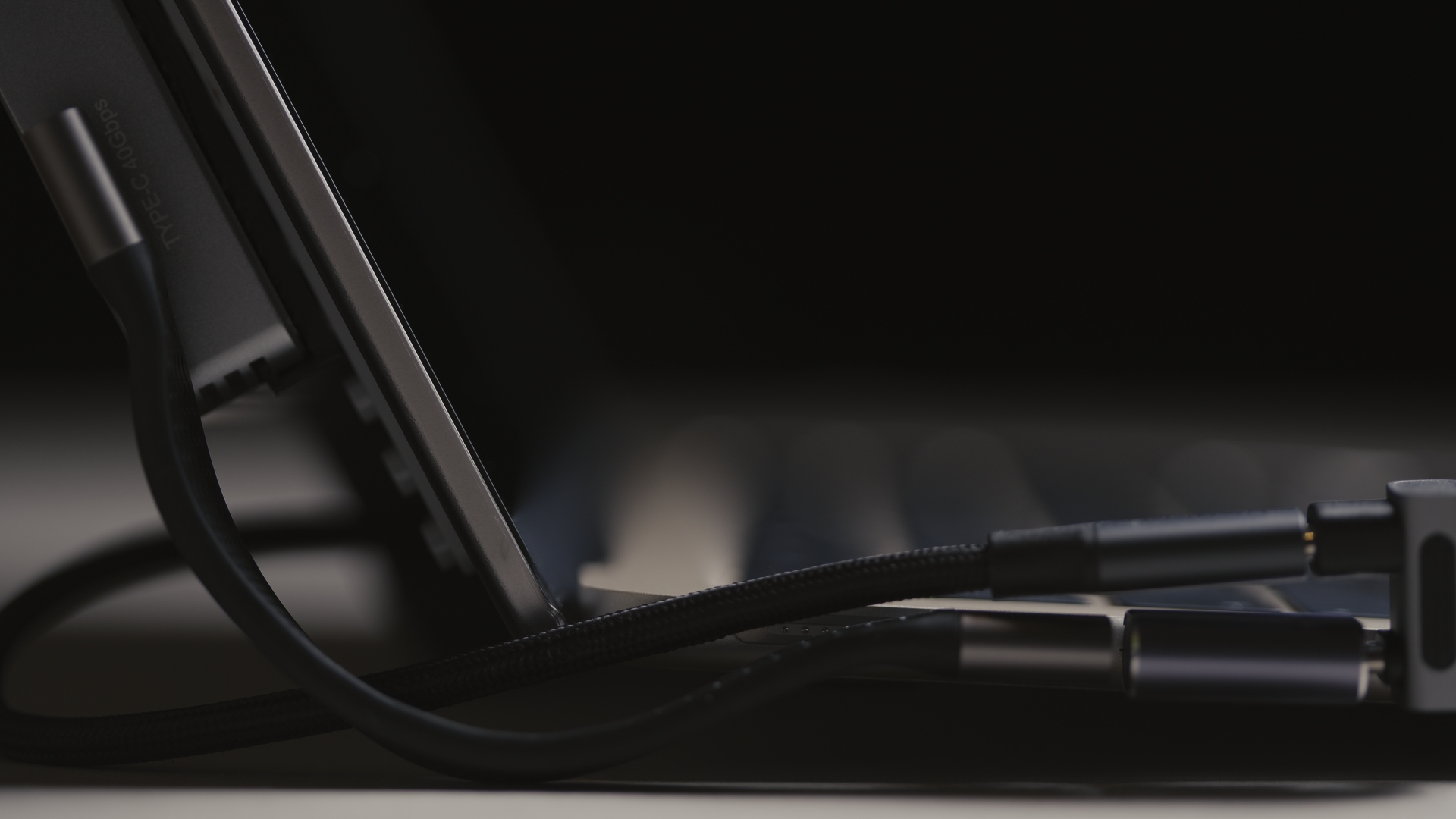
Side-view of cables connected
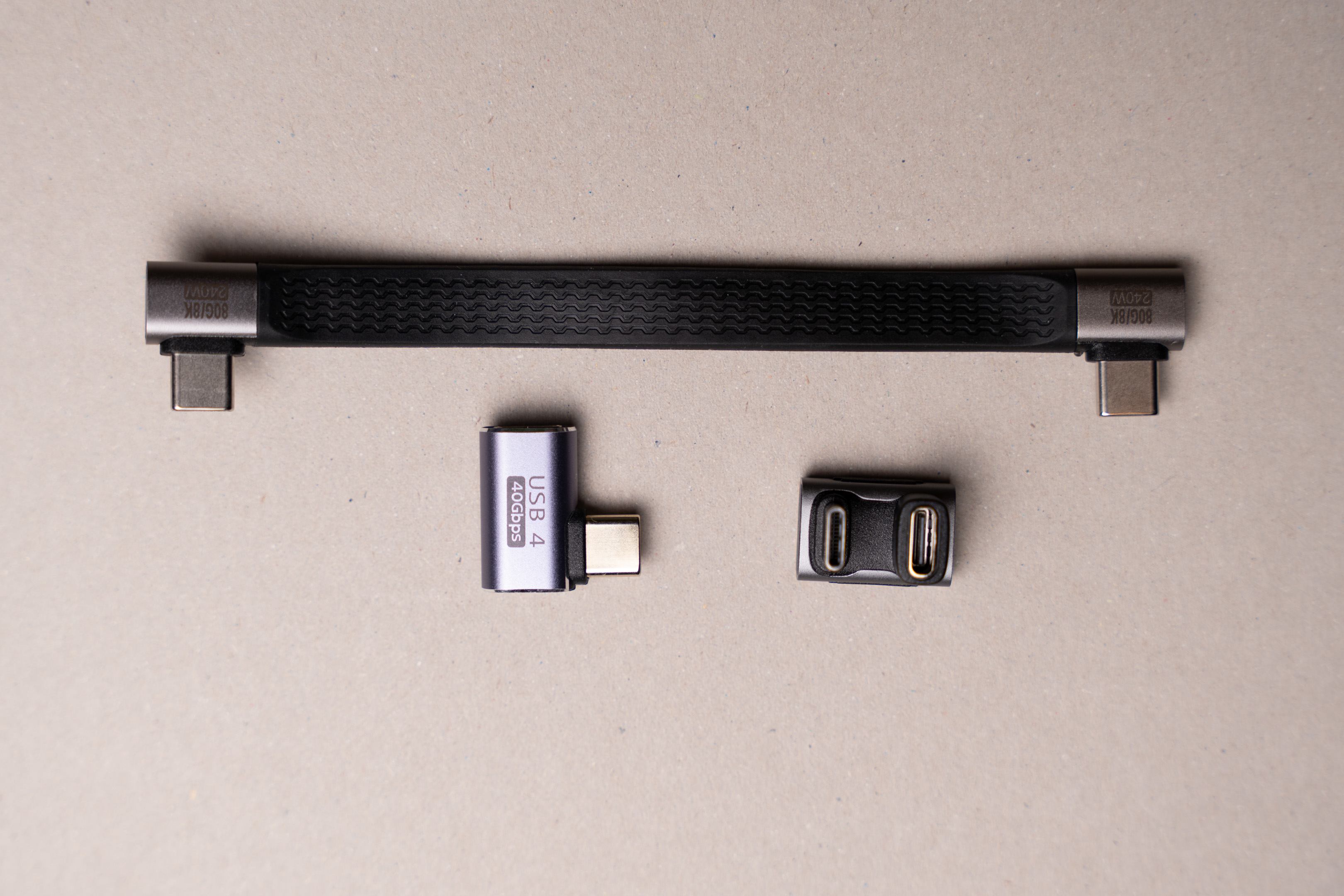
Top: right-angle to right-angle cable for NVMe caddy. Bottom: right-angle adapter and U adapter for plugging in USB dock/hub cable
USB hubs
If you want any more than 2 things connected to a macbook air at once you're going to need a hub. Ideally it would be nice to have a Thunderbolt hub, but these are much bigger than a USB hub, require external power, and are a lot more expensive. Apparently you should be able to get bus powered USB4 hubs, however I have been unable to find any of these for sale.
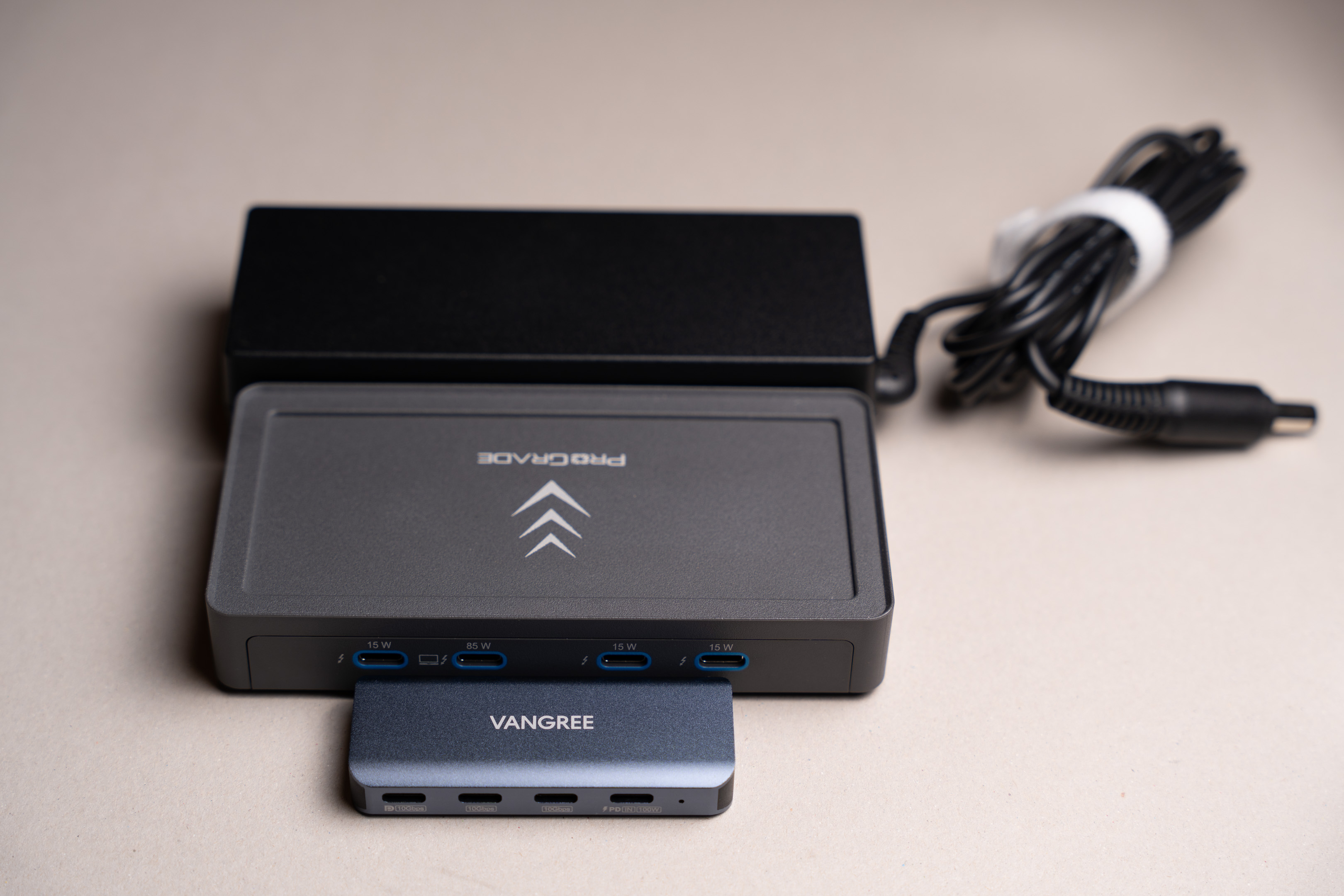
Size comparison of Vangree USB hub (front) and Prograde Thunderbolt hub with its required power supply (and the Prograde hub is pretty small compared to other Thunderbolt docks).
I did get a Vangree branded 10Gigabit USB hub, which is very small and has the distinction of coming without an integrated cable. This is a big plus as it allows you to try and get a cable length that works well for you rather than being stuck with whatever cable length the hub manufacturer decided to use.
However, in the end I decided to go with a larger UGreen 45363 as this has USB-A ports. I mainly just use my macbook when away from home, and while I don't need USB-A ports while somewhere like an airport or cafe, I do need them when back at base as I need to connect my larger hard drive, which uses USB-A. The UGreen's cable is slightly longer than I would like, but I can put up with it.
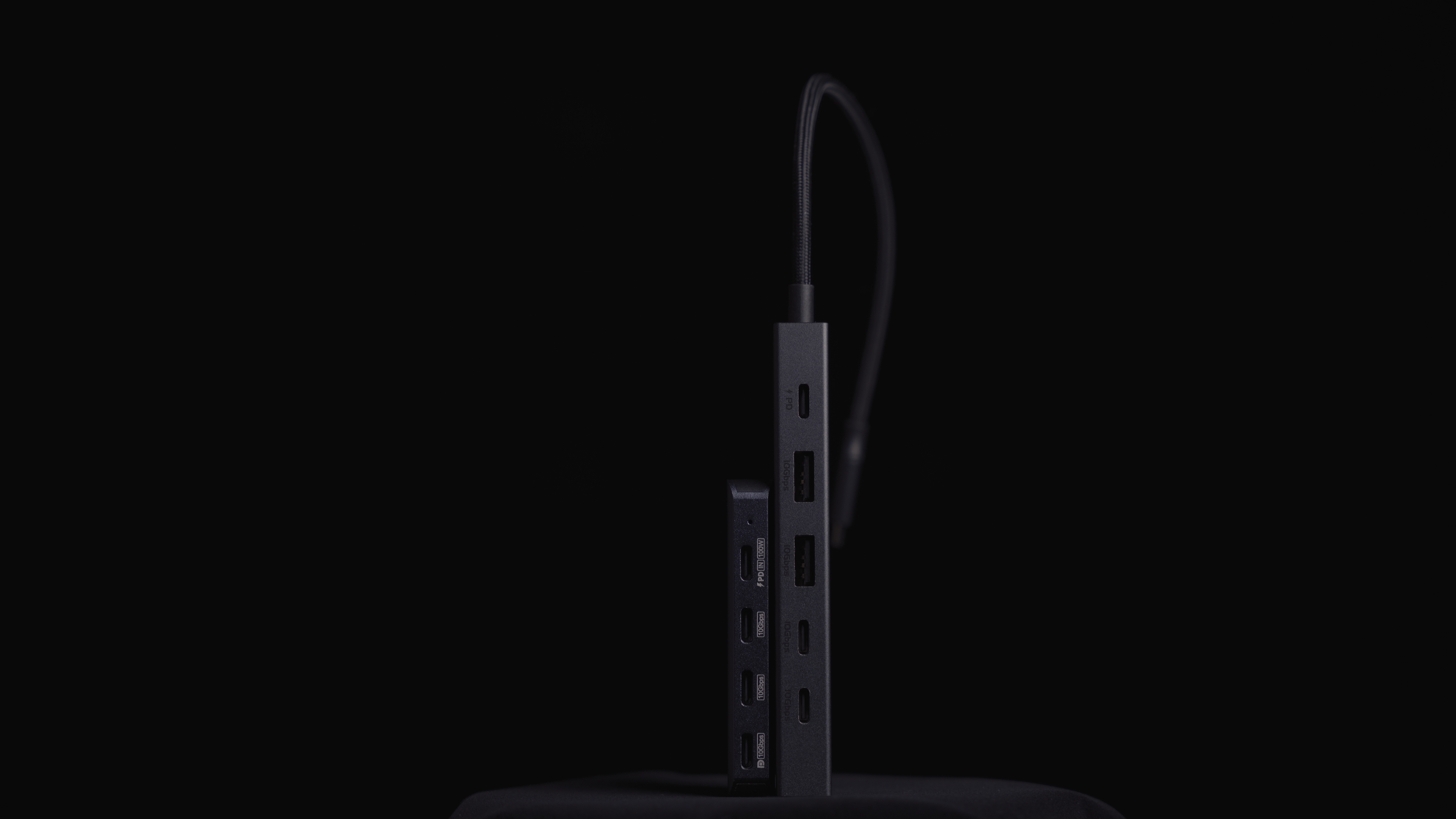
Vangree (left) and Ugreen (right) 10Gb USB hubs
When the hub is positioned slightly off the bottom of the laptop lid this also has the advantage of lifting the laptop up slightly when using it on a flat surface. This allows air to flow under the laptop, helping the laptop cool.
Laptop lifted up off the desk at the rear when lid is opened by having dock positioned slightly over the bottom of the lid
Other solutions for sticking stuff to your laptop
One thing I have seen other people do is to just use velcro. I do quite like this idea as in my opinion it makes the laptop look quite messy with bits of velcro stuck on it, and the messier it looks, the less desirable for thieves.
Posts from the macbookpro
community on Reddit
VELCRO hard drive to laptop for editing on flights
by u/VisibleRadio82 in videography
Another option I tried previously is using a cover with magnets glued onto it and then 3D printed cases that incorporated magnets for my devices I wanted to attach. However, I found in practice that the magnets did not really hold well enough.
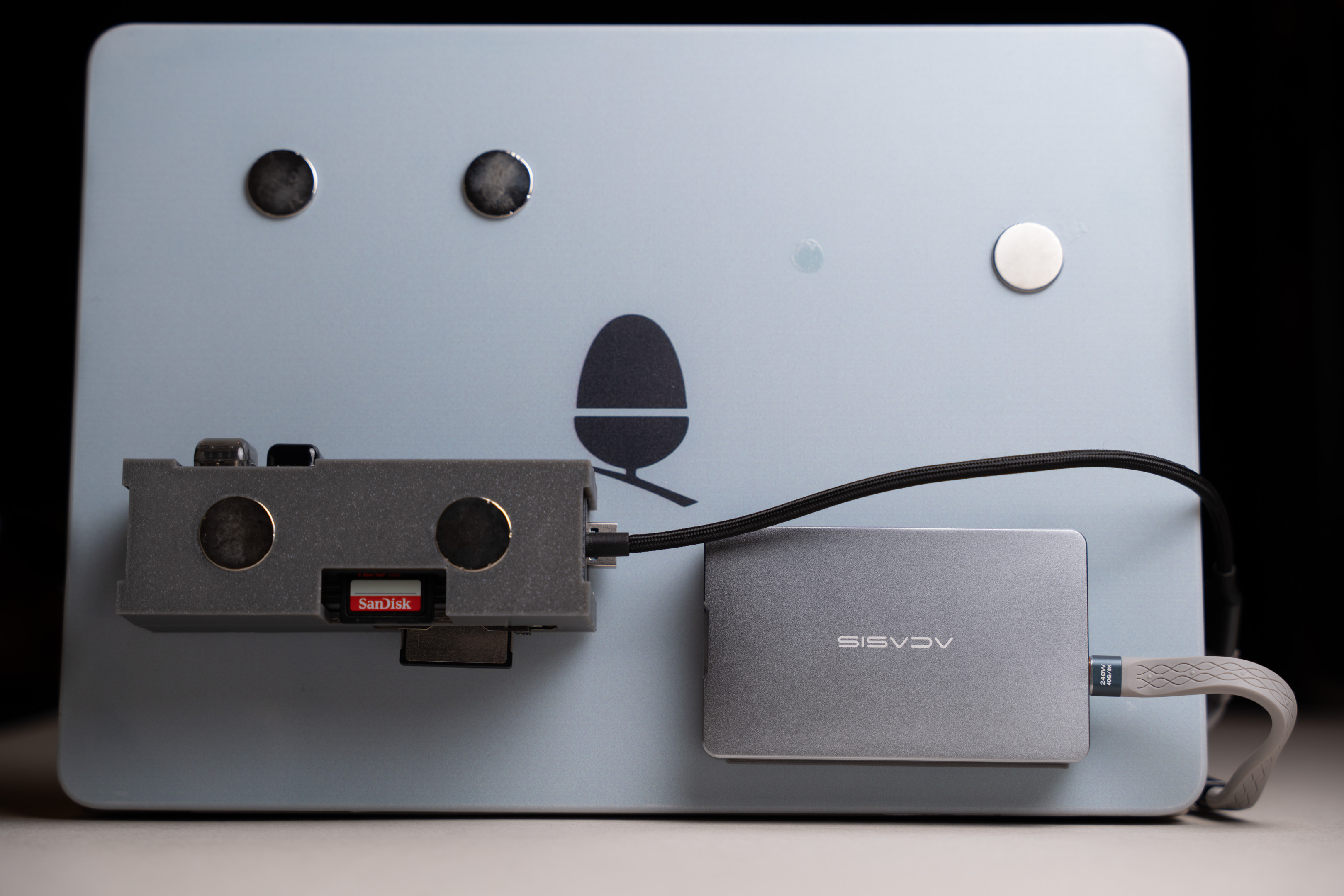
Laptop lid cover with magnets glued on and devices attached using 3D printed cases that incorporate magnets
Note that while the images in this post include the Acasis TBU401E NVMe caddy, I do not suggest using this with a Macbook air as if a 10Gb USB device is already attached to the laptop, then the caddy will also negotiate at 10Gb instead of 40Gb thunderbolt speed. Though possibly this has been fixed on newer revisions of the product.

Leave a Reply